Containers
- Windows
- macOS
- Linux
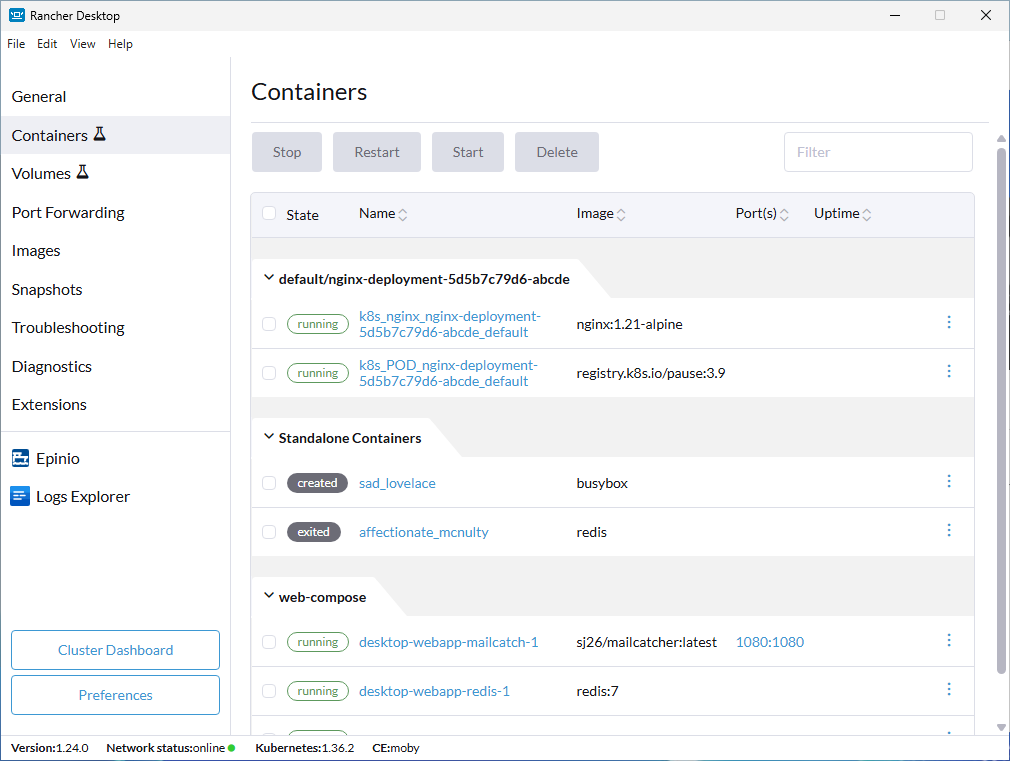
This is an experimental feature.
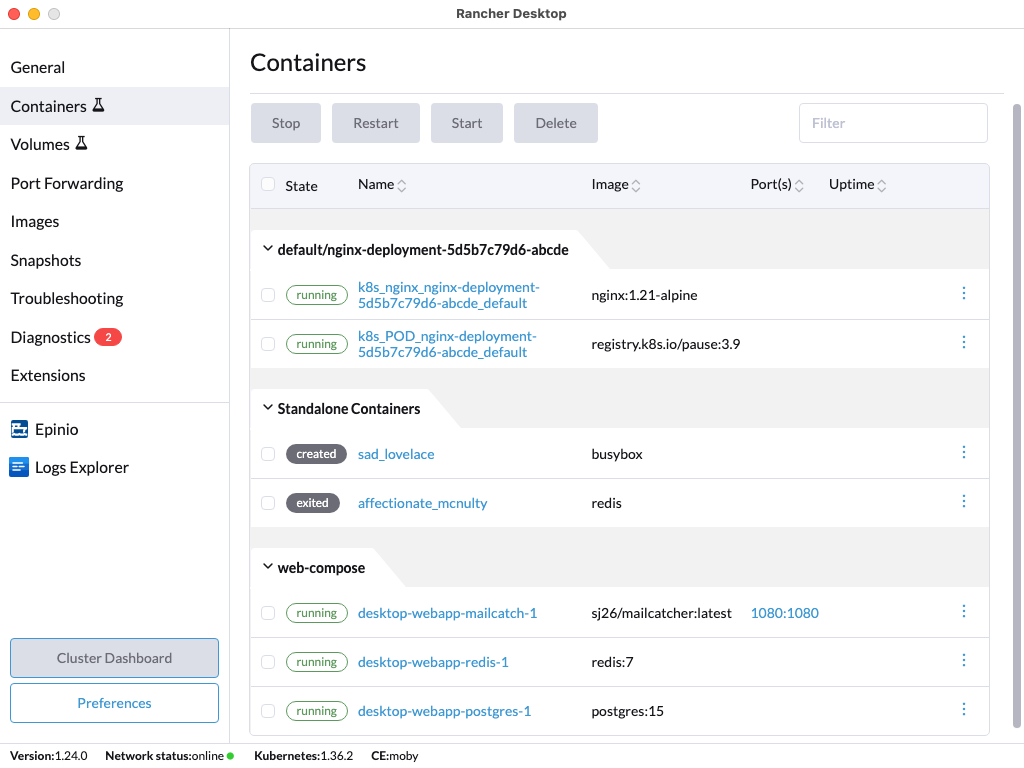
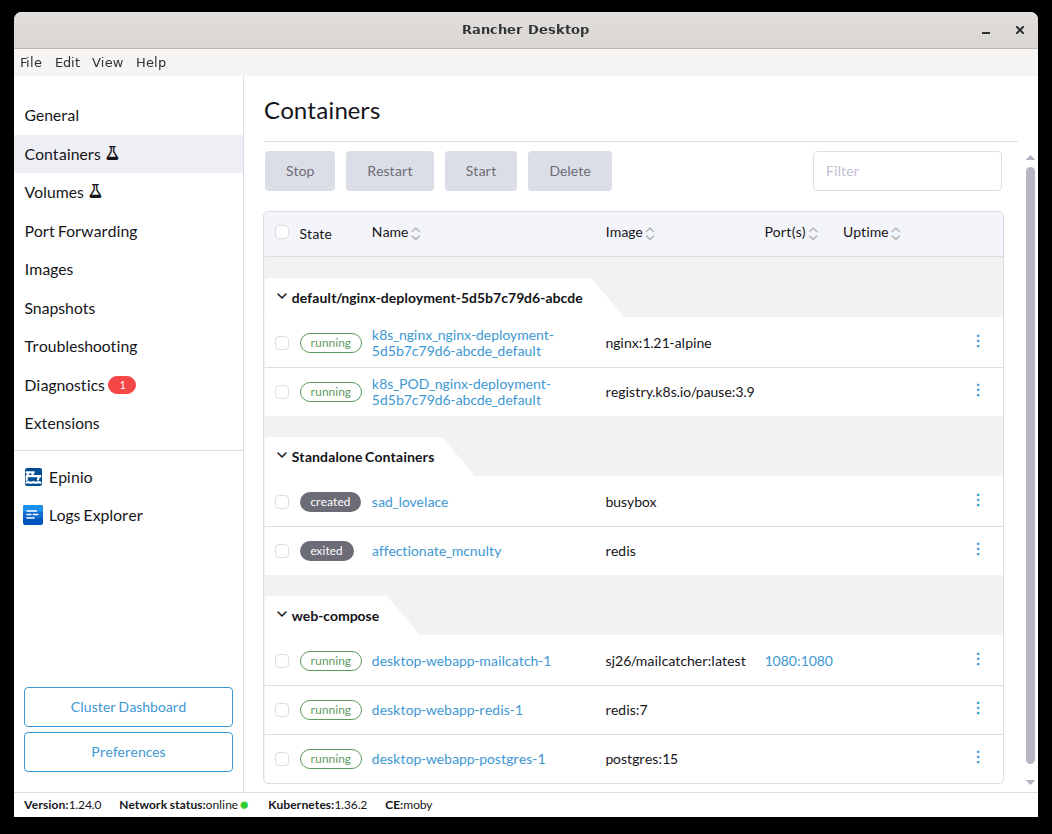
The Containers tab offers quick access to manage containers and view key information such as:
State: The container state(s) will be listed in this field, and by default running containers are presented first.Name: The container name(s) will be listed in this field and can be sorted.Image: All image names will be listed in this field and can be sorted.Port(s): Ports are listed in this field and can be clicked for quick access to a localhost port.Started: Container start-up times will be listed in this field and can be sorted.
The information is updated automatically as containers are created, started, stopped, or deleted.
Containers are grouped together by Kubernetes pod, or by docker-compose deployment. The remaining containers are grouped as "Standalone Containers".
The listed information can be sorted in ascending or descending order. Containers can also be filtered with input text in the Filter field located at the top right. Bulk selection is available for managing multiple instances at once.
Additionally, when using the containerd engine, you can use the Namespace dropdown selector to help with filtering containers. The dropdown will be located next to the Filter field and shows namespaces in your cluster when clicked.
Container Management
The buttons located at the top of the page will be highlighted when a container is selected and depend on the container's state.
Bulk selection and actions can also be performed on instances with the same state.
The following actions are available:
Stop: You can terminate container instances using theStopbutton.Restart: You can restart running container instances using theRestartbutton.Start: You can initiate container instances using theStartbutton.Delete: You can delete container instances from your system entirely by using theDeletebutton.⋮: This button is located on the right side of the tab view. You can start, stop, or delete container instances depending on their state, and you can also view the logs of a container.
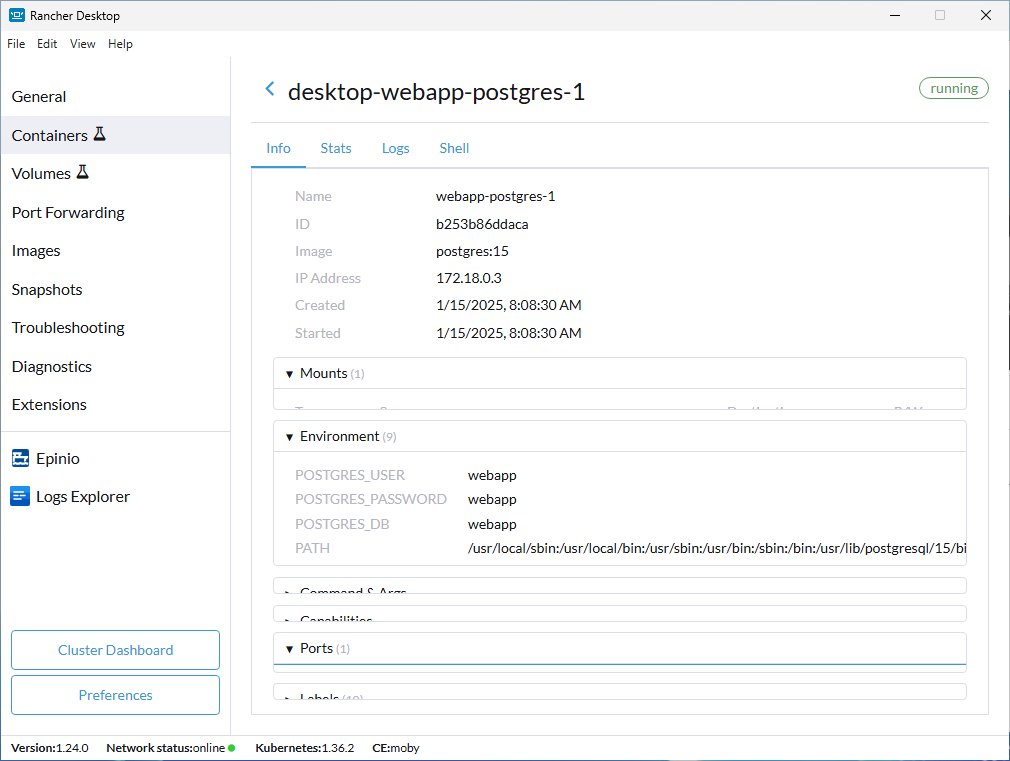
Selecting a container opens a detail view with Info, Stats, Logs, and Shell tabs.
Container Info
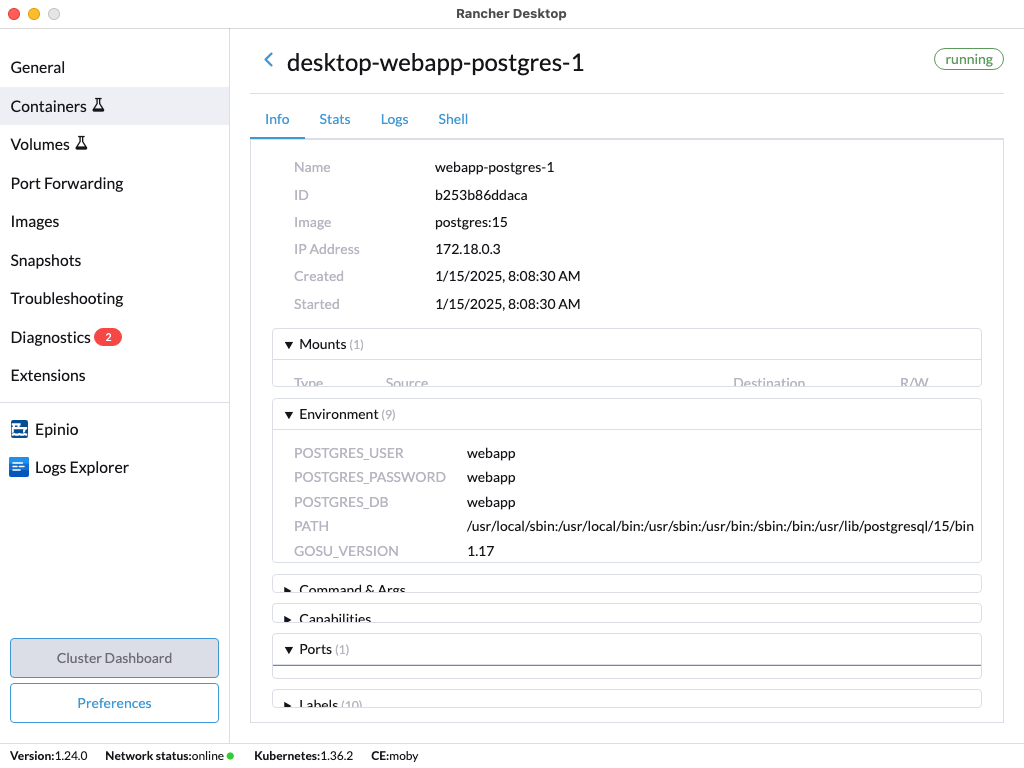
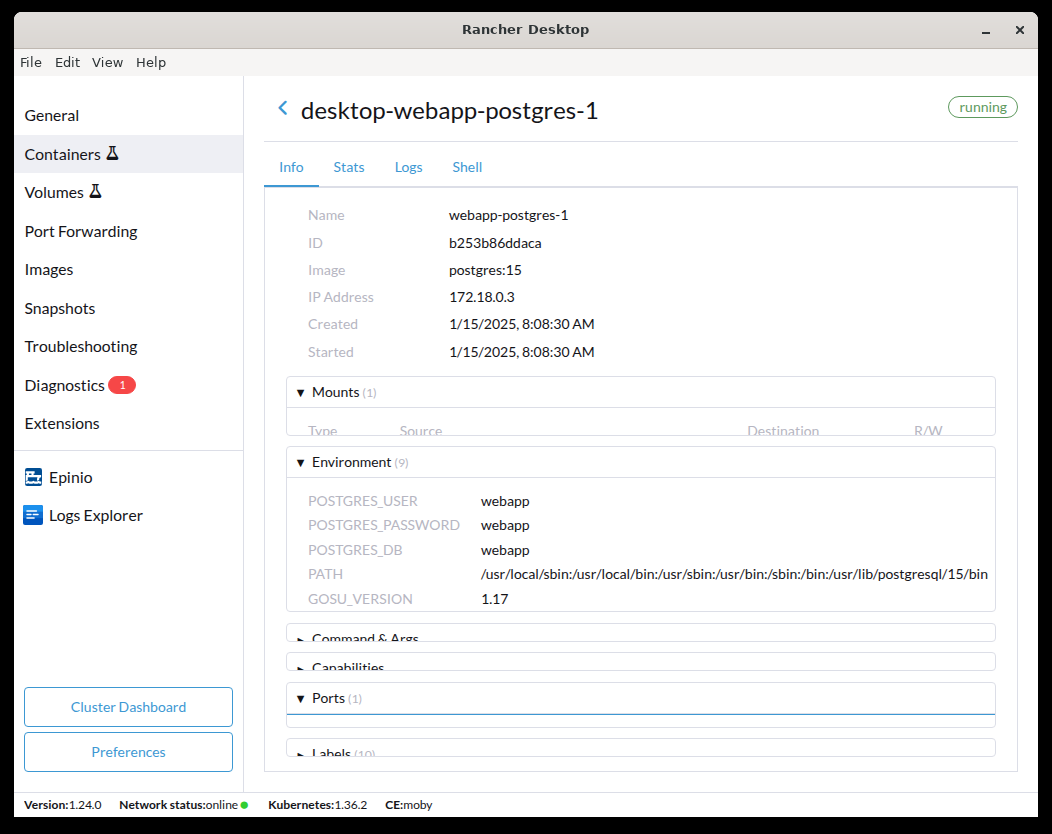
The Info tab opens on a summary of the container: its name, ID, image, IP address, and creation time (plus the start time while it is running). Below the summary, expandable sections list the container's mounts, environment variables, command and arguments, capabilities, published ports, and labels.
- Windows
- macOS
- Linux
Container Stats
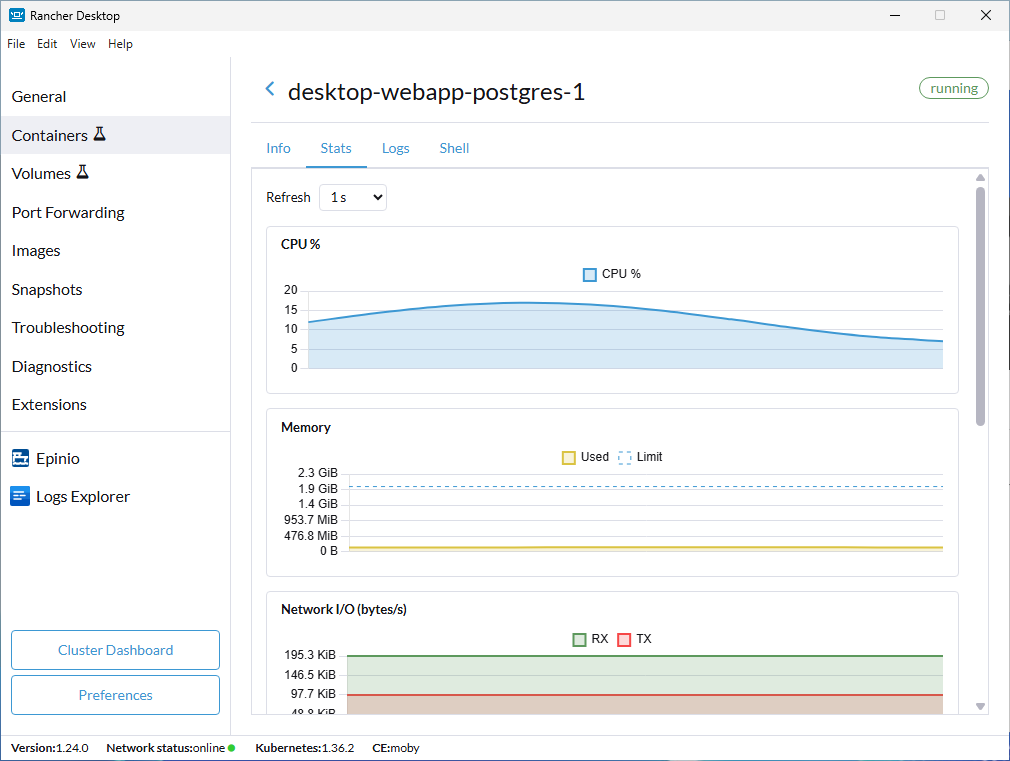
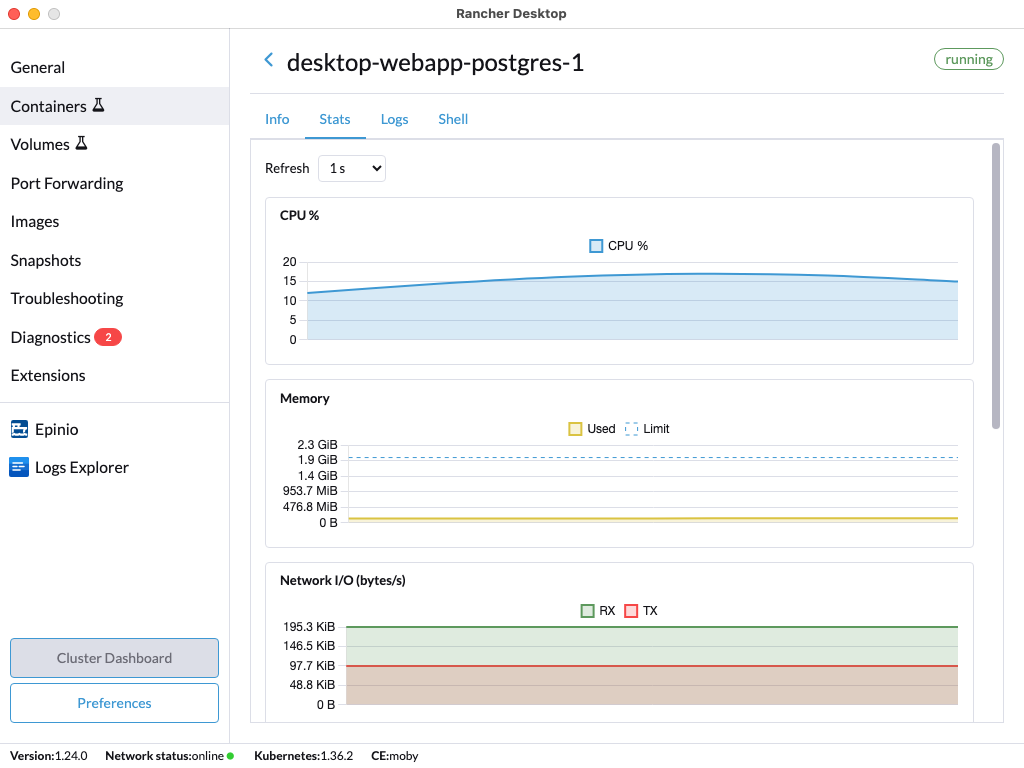
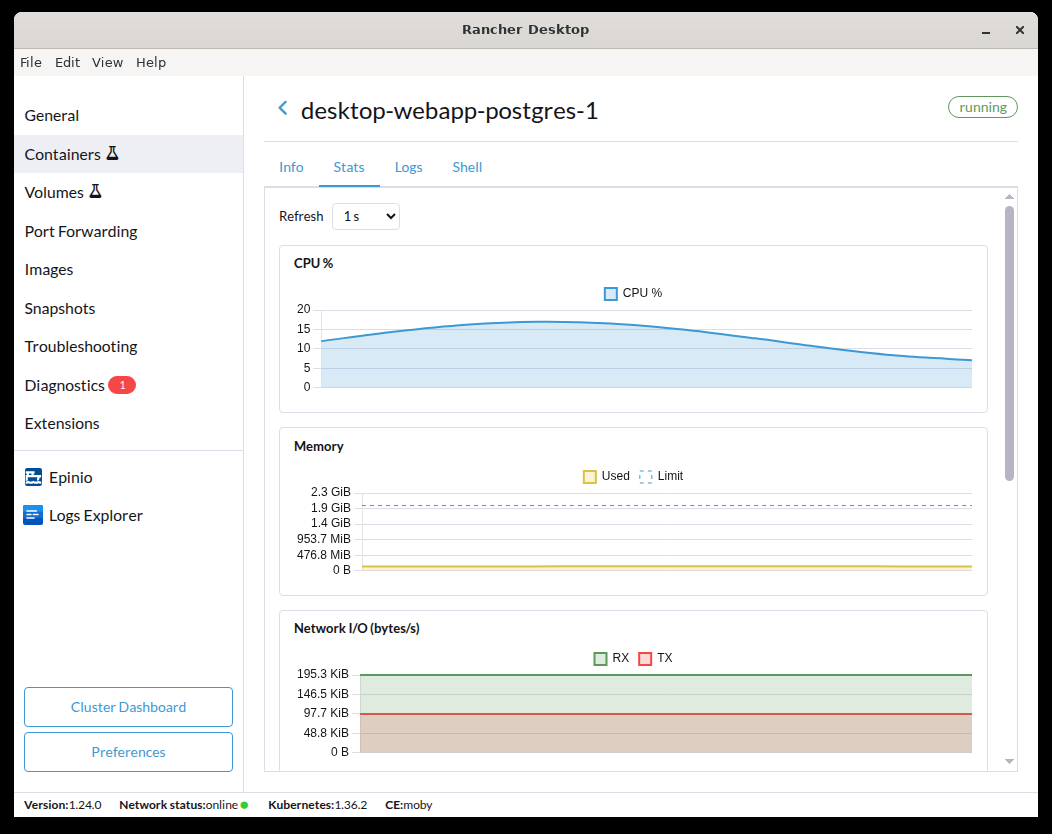
The Stats tab shows live graphs of the container's CPU, memory, network I/O, and block (disk) I/O usage, followed by a table of the processes running inside the container. Use the Refresh selector to choose how often the data updates: every second (the default), every 5, 10, 20, or 30 seconds, or once a minute. Collection stops when you leave the tab.
Stats are available only for running containers, and only with the dockerd (moby) container engine; with containerd the tab shows a notice instead.
- Windows
- macOS
- Linux
Container Logs
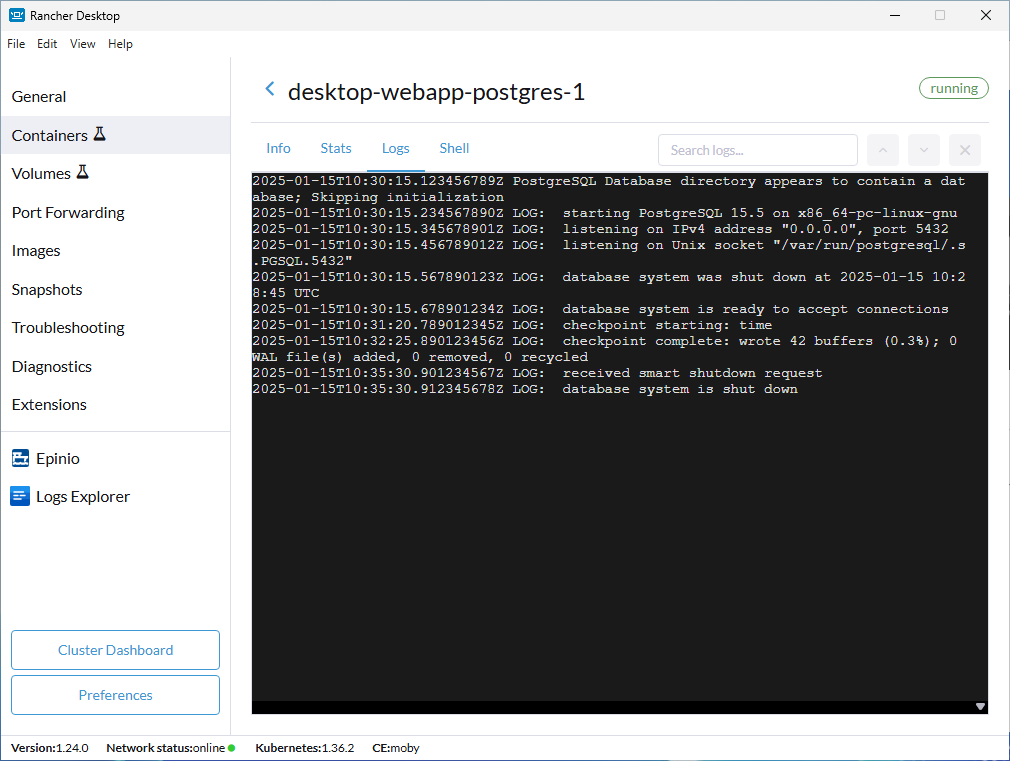
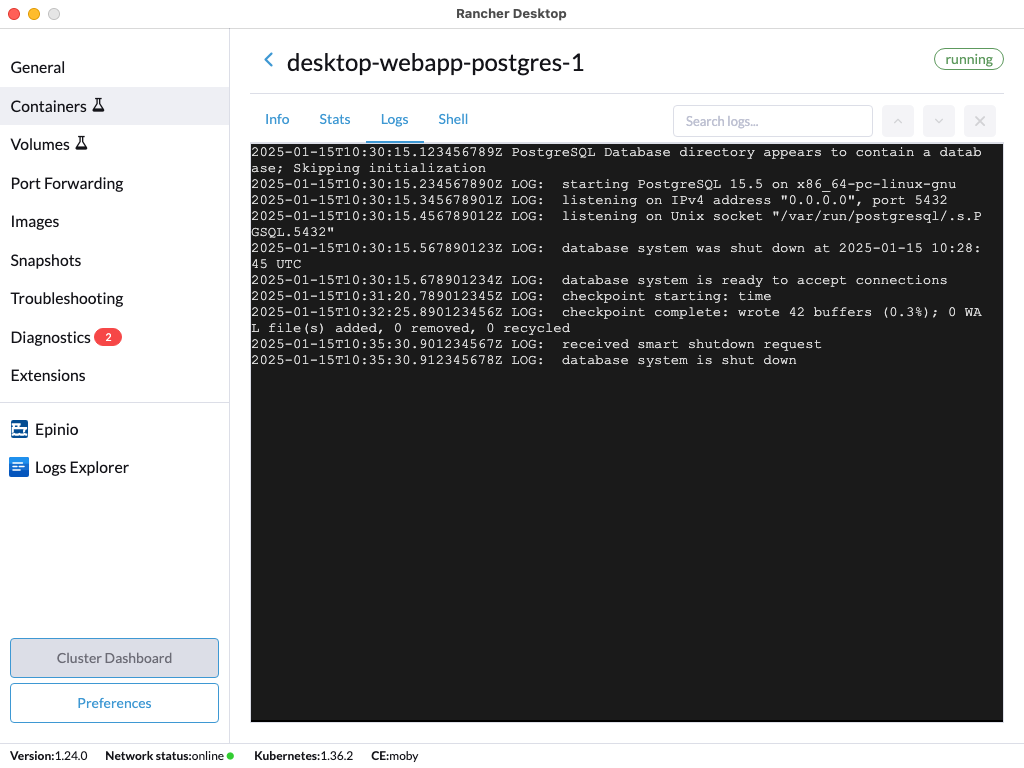
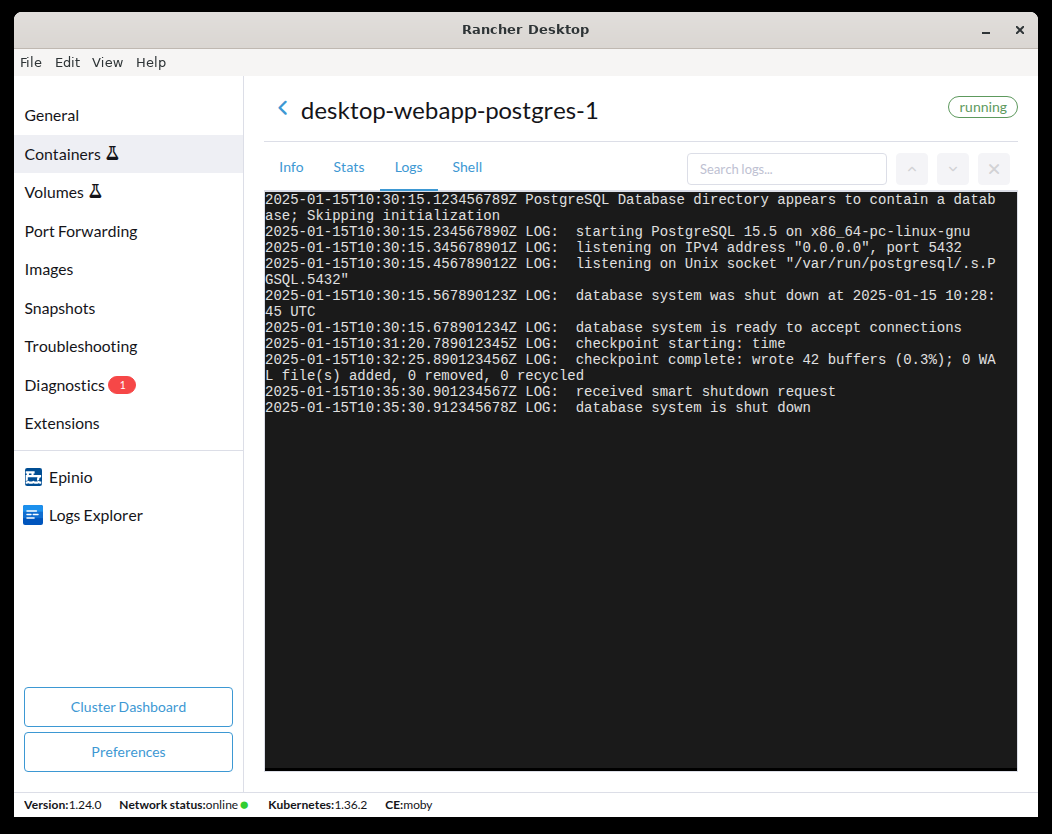
The Logs view shows an automatically updating, scrolling view of the logs of a container. The Search box can be used to locate a string in the logs.
- Windows
- macOS
- Linux
Container Shell
The Shell tab opens an interactive shell inside the container, so you can run commands directly in it. It is available only while the container is running. The session stays open when you switch to the other tabs and come back, so you can check the logs or stats without losing your place.