Rancher Desktop 2.0 Alpha 2: the Preferences dialog is back
Alpha 1 of Rancher Desktop 2.0 shipped without a Preferences dialog. Everything
worked, but you could only change settings from the command line. Alpha 2
brings the dialog back, and it reads and writes the same App object as the
command line tools do.
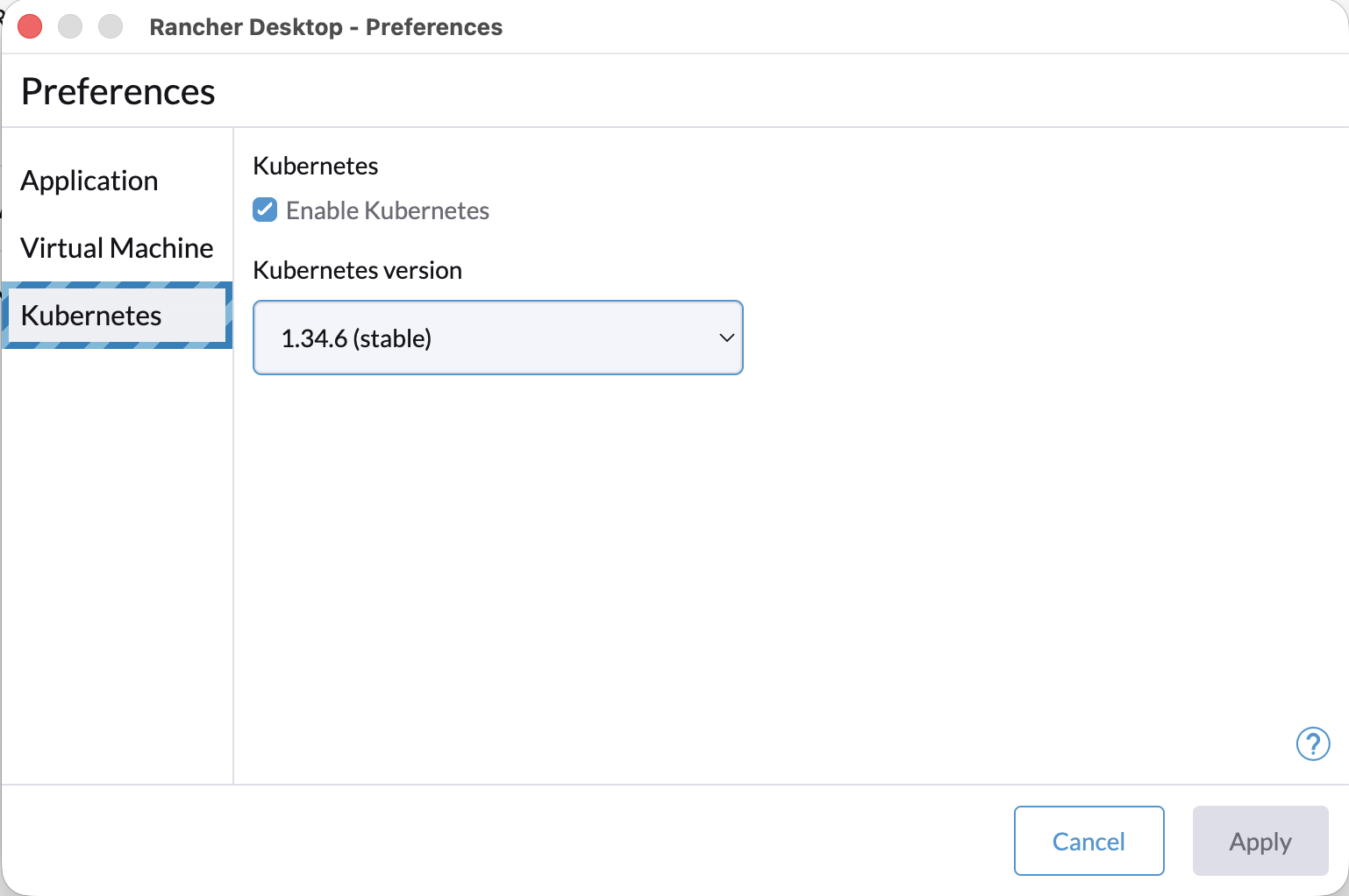
The stripes behind the selected tab mark a pre-release build, and the app icon wears the same pattern. Development builds of 2.0 get them too, and the stripes will come off in the final 2.0.0 release.
What's in it
The dialog has three sections. Application turns automatic update checks on or off. Virtual Machine sets how many CPUs and how much memory the VM gets. Kubernetes enables the cluster and picks its version.
That's a short list next to Rancher Desktop 1.x. More settings will be
reintroduced as they are added to the App object and implemented by the
daemon.
It's an API client
Two earlier posts explained that rdd is
a Kubernetes API server,
and that you can
watch it reconcile a change you
make with rdd set. The Preferences dialog is just another client of that same
API. Every control is bound to a field path on the App object, so applying
the changes you made in the dialog and running rdd set both update the same
field.
Where the controls get their values
The dialog doesn't invent the choices it offers. The CPU and memory controls
get their limits from the daemon, which publishes them as a HostInfo object:
$ rdd ctl get hostinfo
NAME     CPUS   MEMORY
system   20     137438953472
Those are the same numbers the daemon checks against, so asking for more than the machine has gets you turned down:
$ rdd set virtualMachine.cpus=192
ERRO[0000] failed to update App: admission webhook "app-validator.app.rancherdesktop.io" denied the request: spec.virtualMachine.cpus 192 exceeds the host CPU count of 20
The Kubernetes dropdown comes from the same place. The daemon publishes the
versions it supports as a k3s-versions ConfigMap, and the dropdown is a view
of it. Versions that head a channel appear under Recommended Versions, the
rest under Other Versions. This build carries k3s 1.32 through 1.35.
You can read that one too:
$ rdd ctl get configmap k3s-versions --namespace rancher-desktop --output jsonpath='{.data.channels}'
{"1.32":"1.32.13","1.33":"1.33.10","1.34":"1.34.6","1.35":"1.35.3","latest":"1.35.3","stable":"1.34.6"}
The channel aliases work from the command line:
rdd set kubernetes.version=stable
rdd set exists so you don't have to write the JSON or know which kind of
patch to use. Underneath, this is the request it sends for you:
rdd ctl patch app app --type merge --patch '{"spec":{"kubernetes":{"version":"stable"}}}'
When you read the value back you can see that the alias has been replaced by the defaulter1 with the actual version before it was stored in the object:
$ rdd ctl get app app --output jsonpath='{.spec.kubernetes.version}'
1.34.6
There's no rdd get yet, so you have to use the generic rdd ctl get.
Right now a static k3s version list ships with the app. In the future it will update itself at runtime, just like in Rancher Desktop 1.x.
The rest of Alpha 2
The release notes have the full list; here are three of the changes:
- On Linux, 2.0 finally installs beside 1.x. The RPM and DEB claimed the same file names, so the two packages conflicted, and the launcher we shipped ran the 1.x binary.
- On Windows, the host-side network bridge moved into the per-VM host agent, so its ports and listeners now go away with the VM instead of outliving it.
~/.kube/configis safe from overlapping writers, which could previously tear it into invalid YAML or drop the clusters you use with other tools.
Still an alpha
This is a preview. Expect rough edges, and don't put it in front of anything you care about. There's no upgrade path between previews, and Alpha 2 refuses to start against a backend Alpha 1 created. Clear the old one first:
rdd svc delete
That takes the containers, images, volumes, and cluster with it. So there's nothing to carry across. Then install Alpha 2. It sits alongside Rancher Desktop 1.x without touching it, though only one of them can run at a time.
On Windows, the Virtual Machine tab shows the CPU and memory controls, but
WSL2 ignores them because the VM settings are global across all WSL2 distros.
You can change the defaults in .wslconfig.
Downloads and the full list of changes are in the release, and the installation post still covers getting it running, GUI or backend-only.
💬 Questions or feedback? Discuss this post on GitHub →